TreeTalk Node
Tutorials & Quick Start for Android
This page explains how to start using TreeTalk Node Free or Pro on Android, discover nearby devices, transfer files from Android to Windows or another Android phone, use local text and PTT-style voice messages, and troubleshoot Android background connectivity.
Updated: October, 11, 2026, 15:59 CEST.
TreeTalk Node Free and TreeTalk Node Pro are both live on Google Play. TreeTalk Node Free is the permanent free edition and may also be available as an official APK. TreeTalk Node Pro is a separate paid Android application with a one-time Google Play purchase. Both editions use the same TreeTalk Node communication protocol and can communicate with compatible Android and Windows peers on the same reachable local network.
Which Android edition should I use?
Start with Free if you want to test peer discovery, local text messaging, ordinary single-file transfer and Android-to-Windows communication on your own network. Choose Pro when you need larger files, regular multi-file sending, unlimited outgoing voice messages or deeper local histories.
TreeTalk Node Free
- Free to install and keep using.
- Single files up to 100 MB under permanent Free limits.
- Unlimited ordinary text messaging.
- Evaluation allowances for multi-file sending and outgoing voice messages.
TreeTalk Node Pro
- Separate paid Android app; no subscription required.
- Files up to 55 GB, subject to device and network conditions.
- Multi-file / multi-select sending.
- Unlimited outgoing voice messages and deeper histories.
Free vs Pro at a glance
| Feature | TreeTalk Node Free | TreeTalk Node Pro |
|---|---|---|
| Price | Free | One-time Google Play purchase; current reference price approx. US$9.99 / €9.99 plus applicable tax or VAT |
| Maximum individual file size | 100 MB | Up to 55 GB* |
| Multi-file sending | Evaluation allowance: up to 30 individual files through the multi-file workflow; single-file sending remains afterwards | Multiple / multi-select |
| Outgoing voice messages | Evaluation allowance: up to 30 | Unlimited |
| Ordinary text messaging | Unlimited | Unlimited |
| Chat / transfer history | 100 rolling messages / 100 rolling transfer records | 1,000 rolling messages / 1,000 rolling transfer records |
| Works without Internet for local communication | Yes | Yes |
| Android ↔ Windows communication | Yes | Yes |
* The 55 GB Pro capability is subject to device, operating-system, storage and network conditions. Google Play controls the final localized Pro price and tax treatment. For the current purchase links and full edition details, see the Android download page.
Before you start
- Connect the Android phone, tablet, workpad or Windows PC to the same reachable Wi-Fi, LAN, VPN or phone hotspot.
- Open TreeTalk Node on every device that should appear in the Peers tab.
- Do not use a guest Wi-Fi network that blocks communication between connected devices.
Normal local file transfer and messaging do not require a cloud upload or an active internet connection.
Android quick start: from first launch to local file transfer
Follow the five screens below. The interface may change slightly as production updates introduce refinements.
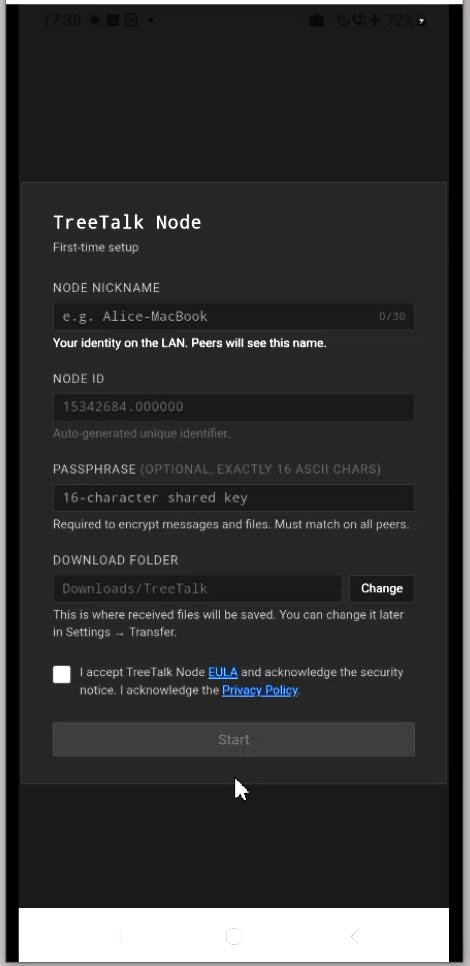
1. Complete the first-time setup
Launch TreeTalk Node, enter the nickname that other devices will see, select Download Folder, and allow the Android permissions needed to select, receive and store files. Keep the app open while completing the first connection test.
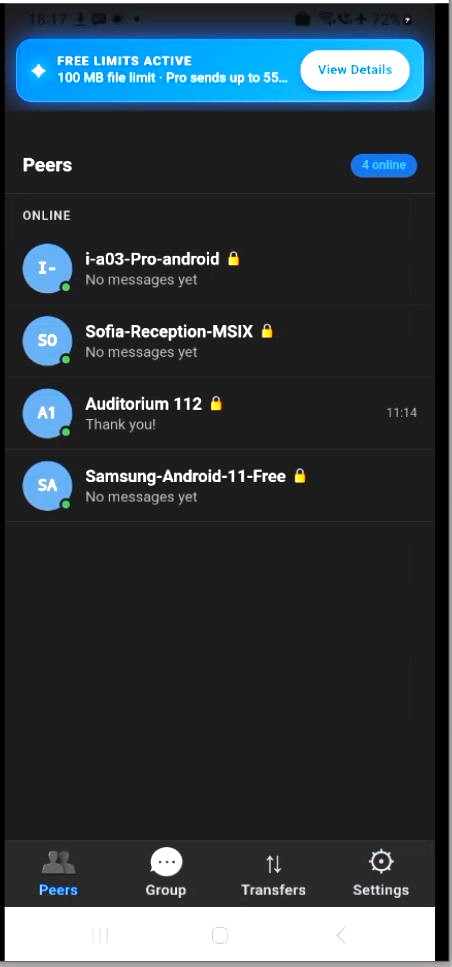
2. Discover Android and Windows peers
Open the Peers tab. TreeTalk Node automatically looks for active devices on the local network. Select a peer to open a private conversation, or use the group option when you need to communicate with several active contacts.
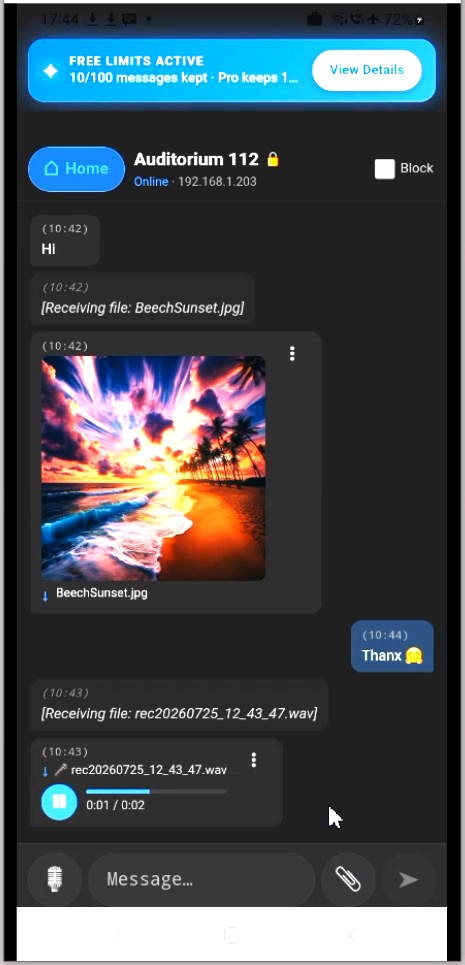
3. Use private text and voice chat
Open a peer to send text, view received image thumbnails and, while the feature is available in your edition, record a voice message in a push-to-talk style workflow. TreeTalk Node Pro supports unlimited outgoing voice messages. TreeTalk Node Free includes an evaluation allowance for outgoing voice messages before that sending function is disabled under the permanent Free limits. The conversation runs between reachable devices on the local network without routing normal communication through any cloud storage.
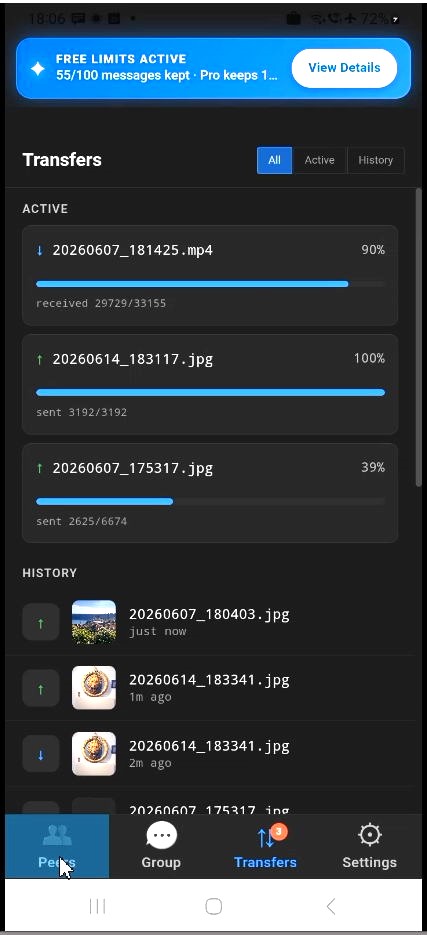
4. Send files and follow transfer progress
Choose a file inside TreeTalk Node, or select photos and videos in Android Gallery and use Share → TreeTalk Node. TreeTalk Node Pro supports multi-file / multi-select sending. TreeTalk Node Free lets you evaluate that workflow with an allowance of up to 30 individual files; after the allowance is exhausted, ordinary single-file sending remains available under the Free limits. Choose one active peer or the available group option, then follow the transfer in the Transfers tab.
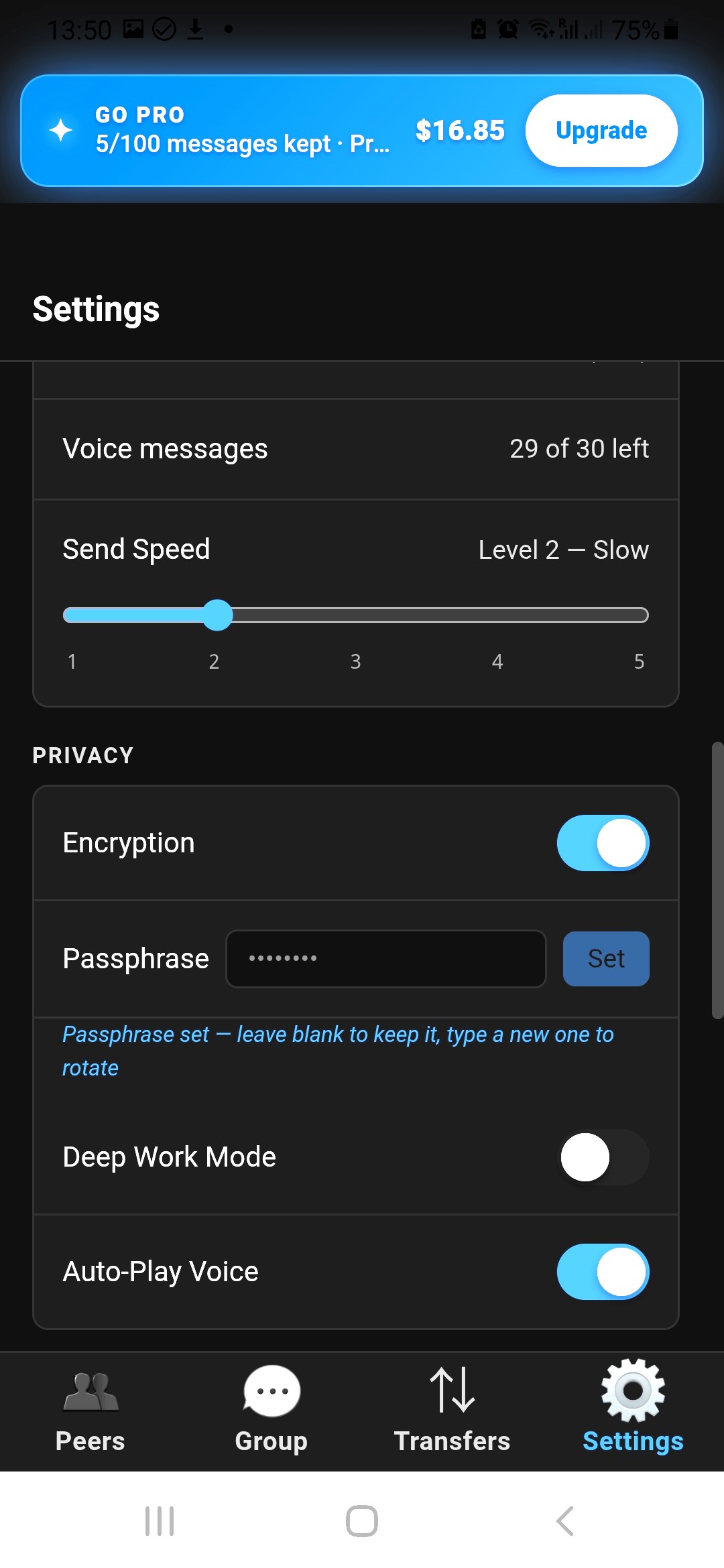
5. Check storage and adjust send speed
Open Settings to review the nickname, download location and transfer options. A higher send-speed setting may suit a stable office LAN or strong Wi-Fi. Use a more conservative setting on older phones, crowded Wi-Fi or a temporary hotspot if transfers become unstable.
Android-to-Windows and Android-to-Android demo and tutorial
This short video shows installation, first launch, peer discovery, Gallery files sharing, Android-to-Windows file transfer, local chat, voice messages and the main Android settings.
Android File Sharing & Local Communication FAQ
These answers cover TreeTalk Node Free and Pro, Google Play and APK installation, Android-to-Windows and Android-to-Android file transfer, local peer discovery, offline chat, voice and multi-file limits, transfer settings, and Android background connectivity.
1 How do I install TreeTalk Node from Google Play or the official APK?
The simplest option is to install TreeTalk Node from Google Play. Google Play handles installation and can deliver future updates according to your Play Store settings.
You can also download the current APK from the official TreeTalk Node Android download page. Android may ask you to allow installation from the browser or file manager used to open the APK. Keep Google Play Protect or equivalent device security checks enabled and install only the official, unmodified package.
During first-time setup, choose a nickname and download folder, then allow the file, media, notification or microphone permissions needed for the features you plan to use.
2 How can I transfer files from Android to Windows over Wi-Fi without using the cloud?
- Open TreeTalk Node on the Android phone and Windows PC.
- Connect both devices to the same reachable Wi-Fi, LAN, private VPN or phone hotspot.
- In Android Gallery or a file manager, select a file. If multi-file sending is available in your edition or Free evaluation allowance, you can select several files.
- Tap Share, choose TreeTalk Node, and select the Windows peer.
- Follow progress in the Android Transfers tab and in the Windows File Journal.
The file travels directly across the reachable local network instead of being uploaded to TreeTalk cloud storage first.
3 Can I share files from Android to another Android phone or send the same file to several peers?
Yes. Two Android devices running TreeTalk Node can discover each other on the same reachable local network and exchange files directly. From Gallery or a file manager, choose Share → TreeTalk Node, then select one peer or the available group option.
Free and Pro differ in the sending workflow. TreeTalk Node Free permanently supports ordinary single-file sending with a 100 MB individual-file limit. It also provides an evaluation allowance for sending up to 30 individual files through the multi-file workflow. After that allowance is used, multi-file sending is disabled but normal single-file sending continues. TreeTalk Node Pro supports multi-file / multi-select sending and files up to 55 GB, subject to device, operating-system, storage and network conditions.
4 Why does TreeTalk Node Android not discover my Windows PC or another phone?
Check the following:
- All devices are connected to the same reachable Wi-Fi, LAN, VPN or phone hotspot.
- The network does not use guest Wi-Fi or client isolation that blocks device-to-device traffic.
- TreeTalk Node is open on every device and has the required Android permissions.
- Windows Firewall or third-party antivirus allows TreeTalk Node on private networks.
- The VPN permits local peer traffic and discovery between the devices.
After checking the network, close and reopen TreeTalk Node on both devices to refresh local peer discovery.
5 Where are received files stored on Android, and how can I find them?
Received files appear in the Transfers history and sender peer's panel, and are saved in the download location configured in TreeTalk Node settings. The exact Android folder can vary by device model and operating-system version.
Open the Settings tab to review or change the download location. Use the Transfers tab to identify the sender, filename and transfer status.
6 Can I use private chat, group chat and PTT-style voice messages without internet access?
Yes. On a reachable local network, TreeTalk Node supports private text conversations, group communication, received image previews and PTT-style recorded voice messages. Normal local communication can continue over Wi-Fi, LAN, VPN or a phone hotspot without active internet access.
TreeTalk Node Pro provides unlimited outgoing voice messages. TreeTalk Node Free lets you evaluate outgoing voice messaging with an allowance of up to 30 messages; after that allowance is exhausted, ordinary text messaging and the other permanent Free functions continue, while additional outgoing voice-message sending is disabled.
7 What do the Android transfer progress bars and Send Speed setting mean?
The Transfers tab shows whether a file is waiting, sending, receiving or complete, together with a progress indicator. Keep both devices connected to the local network until the transfer finishes.
The Send Speed setting controls how aggressively TreeTalk Node sends data. A higher setting may suit a stable LAN or strong Wi-Fi connection. Reduce it when using a crowded wireless network, an older device or a temporary phone hotspot if transfers become unreliable.
8 What are the advantages and limitations of installing TreeTalk Node from Google Play?
Google Play is the recommended option for most users because installation is straightforward, you do not need to enable installation from an external source, and app updates can be delivered automatically according to your Play Store settings. The app also passes through Google Play distribution and Play Protect checks.
The main considerations are that Google Play must be available on the device, the device must be compatible with the published app, and downloading or updating normally requires internet access and a Google Play account. Store rollout timing and automatic-update behaviour are controlled partly by Google Play and your device settings.
9 When is the direct APK useful, and what are its trade-offs?
The official APK can be useful when Google Play is unavailable on a compatible device, when an administrator prefers direct package deployment, or when you want to download the installer from TreeTalk and keep a copy for later installation. Always use the APK link on the official TreeTalk Node Android download page and check the listed device and architecture requirements.
Unlike the Google Play installation, the APK route may require you to temporarily authorise installation from the browser or file manager that opens the package. You are also responsible for checking the TreeTalk download page and installing future APK updates manually. Disable unnecessary sideloading permission afterwards and do not install copies received from third parties.
10 What are the main differences between TreeTalk Node Free and TreeTalk Node Pro on Android?
Both Android editions use the same TreeTalk Node communication protocol and can communicate with compatible Android and Windows peers. The difference is mainly in the limits applied to heavier workflows.
- TreeTalk Node Free: permanent free use, ordinary text messaging, single-file sending up to 100 MB, rolling history limits, plus evaluation allowances for selected multi-file and outgoing voice functions.
- TreeTalk Node Pro: separate paid Google Play app, files up to 55 GB subject to device and network conditions, multi-file / multi-select sending, unlimited outgoing voice messages, and deeper chat and transfer histories.
TreeTalk Node Pro is a one-time Google Play purchase, not a recurring software subscription. Installing Pro does not unlock or replace the Free app; they are separate Android packages and can be installed side by side.
See the Android download and Free-vs-Pro comparison page for the current limits and Google Play links.
11 Why did multi-file sending or outgoing voice messages stop working in TreeTalk Node Free?
This normally means that the Free-edition evaluation allowance for that feature has been used.
TreeTalk Node Free currently lets each installation evaluate selected Pro functions with up to 30 outgoing voice messages and up to 30 individual files sent through the multi-file workflow. Each allowance ends when its quantity is exhausted.
The Free app itself does not expire. Ordinary text messaging and ordinary single-file sending remain available under the permanent Free limits, including the current 100 MB maximum individual file size. Previously received messages and files are not intentionally removed when an evaluation allowance ends.
If you need regular multi-file sending or unlimited outgoing voice messages, install the separate TreeTalk Node Pro app on Google Play.
12 Why can TreeTalk Node stop receiving local traffic or appear unresponsive after inactivity, the screen turns off, or I switch to another app?
TreeTalk Node relies on active local-network communication for peer discovery, file transfers, text and voice messaging. Android and some device manufacturers apply battery and memory-management rules when an app moves to the background, the screen is off, or the device has been idle.
On aggressively managed devices, the operating system may suspend background network activity, freeze the app process, or unload it from memory. A typical symptom is that peers disappear, transfers or messages stop arriving, or the app looks stale or temporarily unresponsive when you return to it.
First reopen TreeTalk Node and confirm that the device is still connected to the same reachable Wi-Fi, LAN, VPN or hotspot. If the problem repeats, exclude TreeTalk Node from battery optimisation / sleeping-app controls where your Android vendor provides those settings.
13 How do I keep TreeTalk Node running constantly in the background on Samsung (Android) devices without dropping local UDP network connections?
For real-time file transfers, text and voice messaging over a local network, TreeTalk Node relies on persistent UDP sockets. Samsung One UI can apply aggressive background power and memory management, which may suspend network activity or unload an app after it loses screen focus or remains idle.
1. Set Battery usage to Unrestricted
This prevents normal app-specific battery optimisation from throttling TreeTalk Node background activity.
- Open Settings → Apps.
- Select TreeTalk Node (or TreeTalk Node Pro, if that is the edition you use).
- Tap Battery.
- Select Unrestricted.
2. Add TreeTalk Node to Never auto-sleeping apps
This excludes the app from Samsung's normal background sleeping list.
- Open Settings → Device Care or Battery.
- Open Background usage limits.
- Select Never auto-sleeping apps (the wording may vary slightly by One UI version).
- Tap the + button and add TreeTalk Node or TreeTalk Node Pro.
3. Keep the app open from the Recent Apps screen
On Samsung versions that provide this option, keeping the app open reduces the chance that it will be removed from memory under normal background pressure.
- Open the Recent Apps screen.
- Tap the TreeTalk Node icon above its preview card.
- Select Keep open. A lock indicator may appear on the app card.
4. Disable automatic pausing for an unused app
- Open Settings → Apps → TreeTalk Node.
- If your Samsung / Android version shows Pause app activity if unused, turn it off.
After changing these settings, reopen TreeTalk Node and
verify that the device remains visible from another TreeTalk
Node peer after the screen is turned off and after switching
to another app. Samsung menu names can change between One UI
releases, so use the closest equivalent setting if the
wording on your device differs.
Unfortunately, on some Android smartphone models and UI
versions, particularly Samsung devices, even the measures
described above may not resolve the issue, and stable,
uninterrupted app operation with minimal latency can only
be guaranteed while the screen remains unlocked. Please
keep this limitation in mind.
Something is missing? Please take the 1-minute survey and tell us which Android Free/Pro workflow, device-specific background setting or troubleshooting topic should be added next.