How to Share Files Between Android Phones and Windows Without Cloud Uploads
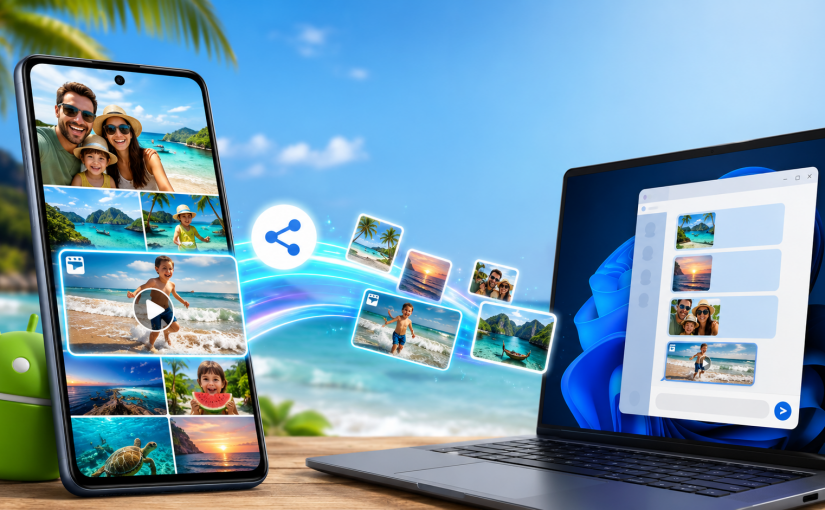
A phone and a Windows PC can sit on the same table, yet family photos still get handed to an internet service in another country just to move a few metres.

That route may be convenient when people are far apart. It makes less sense when the devices are in the same room, on the same Wi-Fi network, and the files contain private faces, children, homes, locations or travel moments.

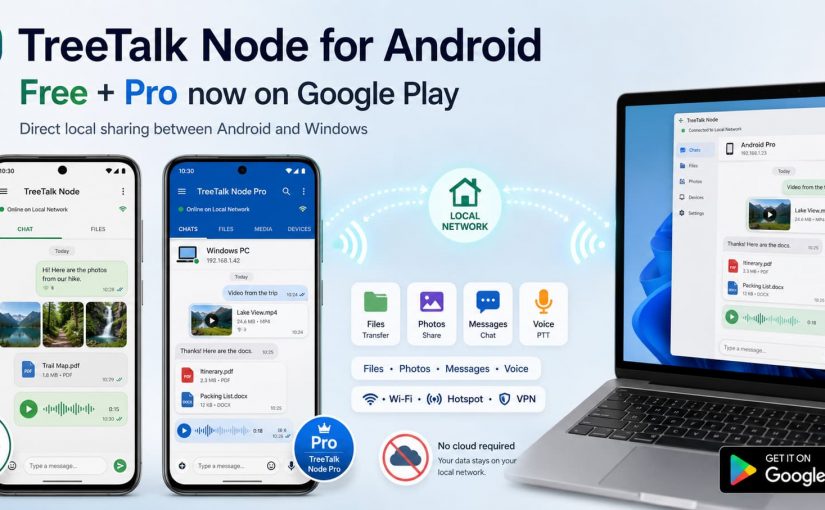
TreeTalk Node for Android removes that detour. The new public beta can transfer files directly between Android phones, Android tablets and Windows PCs on the same reachable local network. It also adds private text chat, group messages, image previews and recorded voice messages in a push-to-talk style.

The Android and Windows applications do not look identical. They should not. The phone uses a familiar messenger-style interface, while the Windows version keeps a compact desktop layout. The important part is that the devices can discover one another and use the same local communication flow.

TreeTalk Node Android Peers tab and Windows version

Android-to-Windows and Android-to-Android file sharing

TreeTalk Node now supports three everyday routes:

  • Windows to Windows: exchange files and messages between PCs.
  • Android to Windows: send photos, videos, documents and other files from a phone or tablet to a nearby PC, and receive files back from Windows.
  • Android to Android: exchange files and messages between phones or tablets connected to the same Wi-Fi, LAN, VPN or phone hotspot.

The transfer is peer to peer. The file moves between the participating devices instead of being uploaded to TreeTalk cloud storage and then downloaded again. No TreeTalk account is required for normal local use. Each user chooses a nickname that appears in the local peer list.

This is useful at home, on holiday, inside a small office, in a classroom, at an event, or anywhere several devices need to exchange content without depending on an external server.

How to send photos and videos from Android Gallery

The most natural Android workflow starts in the Gallery or file manager:

  1. Select one photo, one video or several files.
  2. Tap the standard Android Share button.
  3. Choose TreeTalk Node from the Share menu.
  4. Select one active contact, several contacts, or the local group.
  5. Start the transfer and follow its progress in the Transfers tab.

You do not need to move the files into a special cloud folder first. You also do not need to open an email draft, create a temporary link or compress several images into an archive just to reach a nearby device.

The Android feed can show previews of sent and received images, which makes it easier to see what has already arrived. The Transfers tab keeps a history of incoming and outgoing files.

Android share menu for sending a Gallery file through TreeTalk Node to everyone or a selected peer
Select a Gallery file, choose TreeTalk Node, then send it to one peer or everyone available.

What happens on the Windows side

Run TreeTalk Node on the Windows PC and connect both devices to the same reachable network. The applications search for compatible peers automatically. When the Android nickname appears in the Windows peer list, either device can start the transfer.

On Windows, a user can drag a file onto the Android contact panel or directly to the nickname on the peer list. On Android, a user can select a file from the contact screen or use the Gallery / Files Share menu. The file history shows what was sent, what was received and where the received content was stored.

Windows users have two download choices:

  • The Microsoft Store version for Windows 10 and Windows 11 offers the simplest installation and is Microsoft-signed.
  • The portable Windows version supports Windows 7 SP1 through Windows 11 and can run from a chosen folder without a traditional installer.

The Android public beta and Windows application cover the main cross-platform workflow, but their interfaces and some platform-specific functions are not identical.

More than file transfer: private chat and PTT-style voice

TreeTalk Node is not only a wireless file transfer app. Android and Windows users can also exchange local text and recorded voice messages.

The Peers tab is for individual contacts. Open a peer to see the private feed, send a file, write a message or hold the microphone button to record a voice message.

The Group tab provides one shared local feed. A message, voice note or file can be sent to the active group instead of one person. This can be practical for a family trip, a classroom, an operations team or a temporary network at an event.

With AutoPlay enabled, recorded voice messages can play automatically after arrival. This creates a push-to-talk style workflow similar to a walkie-talkie, while still keeping the messages available for later playback.

TreeTalk Node Android Peers tab with a received image preview, text chat and voice messages
Files, text messages and PTT-style voice messages in one local Android conversation.

Wi-Fi, LAN, VPN or a phone hotspot

Both devices must be able to reach one another on the same network. That network can be:

  • home or hotel Wi-Fi (if users are not isolated);
  • an office LAN;
  • a private VPN connecting approved locations;
  • a phone hotspot or pocket USB WiFi router, even when the hotspot has no internet connection.

A phone hotspot is especially useful while travelling. One device creates the local network, the others join it, and TreeTalk Node discovers the active peers. Photos and videos can then move between the phones and a Windows laptop without leaving that temporary network.

Network configuration still matters. Guest Wi-Fi often isolates connected devices from one another. Corporate firewalls, VLAN rules or mismatched ports can also block peer discovery. The TreeTalk Node tutorial and troubleshooting pages cover the most common checks.

Privacy, encryption and the limits of “local”

Local transfer removes an unnecessary external storage step. TreeTalk Node does not need to store the transferred files on a TreeTalk cloud server for the devices to communicate.

Optional end-to-end encryption is available for files and messages. Participating devices must use matching encryption settings and the same strong passphrase. Share that passphrase through a trusted channel, not in the same public conversation you are trying to protect.

“Local” does not mean that every network is automatically trusted. A public hotel Wi-Fi network, for example, may contain unknown devices and restrictive router settings. Use encryption when the network is shared, and use a private hotspot or a trusted VPN when the content is sensitive.

Where this workflow is useful

The same Android-to-Windows and Android-to-Android file-sharing flow fits both personal and professional situations:

  • Families and travellers: collect holiday photos and videos on one laptop without creating cloud albums or messaging every file separately.
  • Photographers and creators: move selected phone media to a Windows workstation over the local network.
  • Small offices: send documents, photos and voice notes between work phones, tablets and PCs.
  • Education: distribute materials between a teacher’s PC and student devices on the same classroom network.
  • Hospitality and field work: send room photos, inspection images, forms or operational messages from mobile devices to a desktop workstation.
  • Internet outages: continue local file transfer and messaging while the external connection is unavailable.

TreeTalk Node does not try to replace cloud storage when remote access and online archives are the real need. It removes the cloud from a simpler case: two or more nearby devices that only need a direct path.

Watch the Android-to-Windows demo and tutorial

The video below covers APK installation, the Google Play Protect scan, first launch, nickname and download-folder setup, peer discovery, file transfers in both directions, multiple Gallery files, text chat, voice messages and the main Android tabs.

How to try TreeTalk Node

For a useful beta report, include the Android device model, Android version, Windows version when applicable, connection type, and whether peer discovery and file transfer completed correctly.

Frequently asked questions

How do I transfer files from Android to Windows over Wi-Fi?

Connect the Android device and Windows PC to the same reachable Wi-Fi, LAN, VPN or phone hotspot. Run TreeTalk Node on both devices, wait for peer discovery, select the files in Android Gallery, tap Share, choose TreeTalk Node and select the Windows peer.

Can I send several photos or videos from Android Gallery at once?

Yes. Select multiple Gallery items, tap Share, choose TreeTalk Node and send them to one active contact, several contacts or the local group, subject to the limits of the active plan.

Can TreeTalk Node transfer files between two Android phones?

Yes. Android-to-Android file transfer works when both phones run TreeTalk Node and can reach each other on the same supported local network. A private phone hotspot can create that network when no router is available.

Does TreeTalk Node need an internet connection?

No internet connection is required for normal local file transfer, private chat, group messages or recorded voice communication. The devices still need a shared reachable network such as Wi-Fi, LAN, VPN or hotspot.

Can Android and Windows exchange private chat and voice messages?

Yes. The supported Android and Windows versions can exchange direct text messages, group messages and recorded voice messages over the local network. AutoPlay can create a PTT-style voice workflow.

Are files uploaded to TreeTalk cloud storage?

No. TreeTalk Node uses direct peer-to-peer communication for supported local transfers, so the files do not need to be stored on an external TreeTalk server before reaching the recipient.

Can I send the same file to several phones at once?

Yes. Choose multiple active contacts or send to the active group. The Free plan on Windows supports up to five active peers; larger groups require a plan that supports more peers.