How to Share Files Between Android Phones and Windows Without Cloud Uploads

A phone and a Windows PC can sit on the same table, yet family photos still get handed to an internet service in another country just to move a few metres.

That route may be convenient when people are far apart. It makes less sense when the devices are in the same room, on the same Wi-Fi network, and the files contain private faces, children, homes, locations or travel moments.

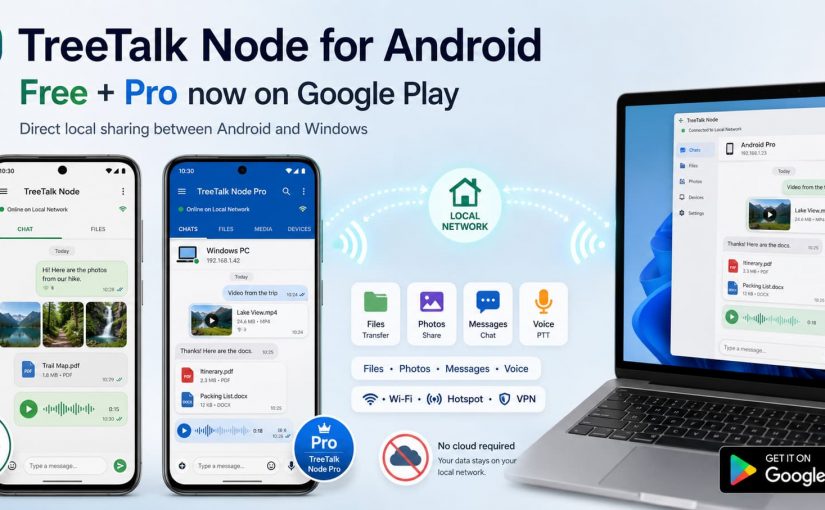
TreeTalk Node for Android removes that detour. The new public beta can transfer files directly between Android phones, Android tablets and Windows PCs on the same reachable local network. It also adds private text chat, group messages, image previews and recorded voice messages in a push-to-talk style.

The Android and Windows applications do not look identical. They should not. The phone uses a familiar messenger-style interface, while the Windows version keeps a compact desktop layout. The important part is that the devices can discover one another and use the same local communication flow.

TreeTalk Node Android Peers tab and Windows version

Android-to-Windows and Android-to-Android file sharing

TreeTalk Node now supports three everyday routes:

  • Windows to Windows: exchange files and messages between PCs.
  • Android to Windows: send photos, videos, documents and other files from a phone or tablet to a nearby PC, and receive files back from Windows.
  • Android to Android: exchange files and messages between phones or tablets connected to the same Wi-Fi, LAN, VPN or phone hotspot.

The transfer is peer to peer. The file moves between the participating devices instead of being uploaded to TreeTalk cloud storage and then downloaded again. No TreeTalk account is required for normal local use. Each user chooses a nickname that appears in the local peer list.

This is useful at home, on holiday, inside a small office, in a classroom, at an event, or anywhere several devices need to exchange content without depending on an external server.

How to send photos and videos from Android Gallery

The most natural Android workflow starts in the Gallery or file manager:

  1. Select one photo, one video or several files.
  2. Tap the standard Android Share button.
  3. Choose TreeTalk Node from the Share menu.
  4. Select one active contact, several contacts, or the local group.
  5. Start the transfer and follow its progress in the Transfers tab.

You do not need to move the files into a special cloud folder first. You also do not need to open an email draft, create a temporary link or compress several images into an archive just to reach a nearby device.

The Android feed can show previews of sent and received images, which makes it easier to see what has already arrived. The Transfers tab keeps a history of incoming and outgoing files.

Android share menu for sending a Gallery file through TreeTalk Node to everyone or a selected peer
Select a Gallery file, choose TreeTalk Node, then send it to one peer or everyone available.

What happens on the Windows side

Run TreeTalk Node on the Windows PC and connect both devices to the same reachable network. The applications search for compatible peers automatically. When the Android nickname appears in the Windows peer list, either device can start the transfer.

On Windows, a user can drag a file onto the Android contact panel or directly to the nickname on the peer list. On Android, a user can select a file from the contact screen or use the Gallery / Files Share menu. The file history shows what was sent, what was received and where the received content was stored.

Windows users have two download choices:

  • The Microsoft Store version for Windows 10 and Windows 11 offers the simplest installation and is Microsoft-signed.
  • The portable Windows version supports Windows 7 SP1 through Windows 11 and can run from a chosen folder without a traditional installer.

The Android public beta and Windows application cover the main cross-platform workflow, but their interfaces and some platform-specific functions are not identical.

More than file transfer: private chat and PTT-style voice

TreeTalk Node is not only a wireless file transfer app. Android and Windows users can also exchange local text and recorded voice messages.

The Peers tab is for individual contacts. Open a peer to see the private feed, send a file, write a message or hold the microphone button to record a voice message.

The Group tab provides one shared local feed. A message, voice note or file can be sent to the active group instead of one person. This can be practical for a family trip, a classroom, an operations team or a temporary network at an event.

With AutoPlay enabled, recorded voice messages can play automatically after arrival. This creates a push-to-talk style workflow similar to a walkie-talkie, while still keeping the messages available for later playback.

TreeTalk Node Android Peers tab with a received image preview, text chat and voice messages
Files, text messages and PTT-style voice messages in one local Android conversation.

Wi-Fi, LAN, VPN or a phone hotspot

Both devices must be able to reach one another on the same network. That network can be:

  • home or hotel Wi-Fi (if users are not isolated);
  • an office LAN;
  • a private VPN connecting approved locations;
  • a phone hotspot or pocket USB WiFi router, even when the hotspot has no internet connection.

A phone hotspot is especially useful while travelling. One device creates the local network, the others join it, and TreeTalk Node discovers the active peers. Photos and videos can then move between the phones and a Windows laptop without leaving that temporary network.

Network configuration still matters. Guest Wi-Fi often isolates connected devices from one another. Corporate firewalls, VLAN rules or mismatched ports can also block peer discovery. The TreeTalk Node tutorial and troubleshooting pages cover the most common checks.

Privacy, encryption and the limits of “local”

Local transfer removes an unnecessary external storage step. TreeTalk Node does not need to store the transferred files on a TreeTalk cloud server for the devices to communicate.

Optional end-to-end encryption is available for files and messages. Participating devices must use matching encryption settings and the same strong passphrase. Share that passphrase through a trusted channel, not in the same public conversation you are trying to protect.

“Local” does not mean that every network is automatically trusted. A public hotel Wi-Fi network, for example, may contain unknown devices and restrictive router settings. Use encryption when the network is shared, and use a private hotspot or a trusted VPN when the content is sensitive.

Where this workflow is useful

The same Android-to-Windows and Android-to-Android file-sharing flow fits both personal and professional situations:

  • Families and travellers: collect holiday photos and videos on one laptop without creating cloud albums or messaging every file separately.
  • Photographers and creators: move selected phone media to a Windows workstation over the local network.
  • Small offices: send documents, photos and voice notes between work phones, tablets and PCs.
  • Education: distribute materials between a teacher’s PC and student devices on the same classroom network.
  • Hospitality and field work: send room photos, inspection images, forms or operational messages from mobile devices to a desktop workstation.
  • Internet outages: continue local file transfer and messaging while the external connection is unavailable.

TreeTalk Node does not try to replace cloud storage when remote access and online archives are the real need. It removes the cloud from a simpler case: two or more nearby devices that only need a direct path.

Watch the Android-to-Windows demo and tutorial

The video below covers APK installation, the Google Play Protect scan, first launch, nickname and download-folder setup, peer discovery, file transfers in both directions, multiple Gallery files, text chat, voice messages and the main Android tabs.

How to try TreeTalk Node

For a useful beta report, include the Android device model, Android version, Windows version when applicable, connection type, and whether peer discovery and file transfer completed correctly.

Frequently asked questions

How do I transfer files from Android to Windows over Wi-Fi?

Connect the Android device and Windows PC to the same reachable Wi-Fi, LAN, VPN or phone hotspot. Run TreeTalk Node on both devices, wait for peer discovery, select the files in Android Gallery, tap Share, choose TreeTalk Node and select the Windows peer.

Can I send several photos or videos from Android Gallery at once?

Yes. Select multiple Gallery items, tap Share, choose TreeTalk Node and send them to one active contact, several contacts or the local group, subject to the limits of the active plan.

Can TreeTalk Node transfer files between two Android phones?

Yes. Android-to-Android file transfer works when both phones run TreeTalk Node and can reach each other on the same supported local network. A private phone hotspot can create that network when no router is available.

Does TreeTalk Node need an internet connection?

No internet connection is required for normal local file transfer, private chat, group messages or recorded voice communication. The devices still need a shared reachable network such as Wi-Fi, LAN, VPN or hotspot.

Can Android and Windows exchange private chat and voice messages?

Yes. The supported Android and Windows versions can exchange direct text messages, group messages and recorded voice messages over the local network. AutoPlay can create a PTT-style voice workflow.

Are files uploaded to TreeTalk cloud storage?

No. TreeTalk Node uses direct peer-to-peer communication for supported local transfers, so the files do not need to be stored on an external TreeTalk server before reaching the recipient.

Can I send the same file to several phones at once?

Yes. Choose multiple active contacts or send to the active group. The Free plan on Windows supports up to five active peers; larger groups require a plan that supports more peers.

TreeTalk Node Is Now on Microsoft Store: Portable ZIP or Store Install?

TreeTalk Node Local Private Messenger and File Sharing Is Now on Microsoft Store

On July 7, 2026, Microsoft approved TreeTalk Node for the Store.

That gives Windows users two real ways to install it now. One is the portable EXE/ZIP we’ve shipped since launch. The other is the Store version, built for Windows 10 and 11.

They solve different problems.

Continue reading TreeTalk Node Is Now on Microsoft Store: Portable ZIP or Store Install?

TreeTalk Node 1.22: Secure-by-Default LAN File Sharing and Messaging

TreeTalk Node 1.22: Secure-by-Default Local File Sharing, Better LAN Messaging, and Clearer Encryption Status

TreeTalk Node 1.22 is a practical release.

No theatrical reinvention. No features added to look good in a demo. No roadmap item invented without real evidence.

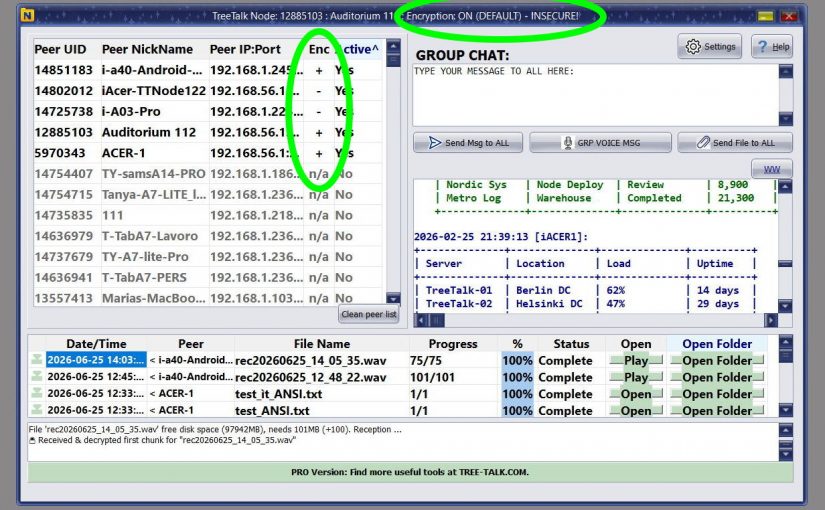
The June Release fixes the small decisions that shape real work. Group text messaging works better. Large-group message distribution is faster. Private chats are easier to read. Long user names no longer get cut off. Input fields are more comfortable to type in. Encryption status is now visible at the moment users actually need to see it.

For new installations, end-to-end encryption is enabled by default.

The common thread: every change came from real user feedback. People used TreeTalk Node in offices, laboratories, VPN environments, warehouses, and internal networks. They described where friction appeared. Version 1.22 is the answer.

Continue reading TreeTalk Node 1.22: Secure-by-Default LAN File Sharing and Messaging

New Release: TreeTalk Node 1.21 Improves Chat, File Logs, and Peer Management

Thanks to your feedback, TreeTalk Node has received its first major update in version 1.21.

One of the unexpected advantages of agentic AI coding is how fast you can respond to user feedback. Ideas that previously sat in a backlog for weeks can now be implemented much faster. That helped us ship TreeTalk Node 1.21, our first major usability update.

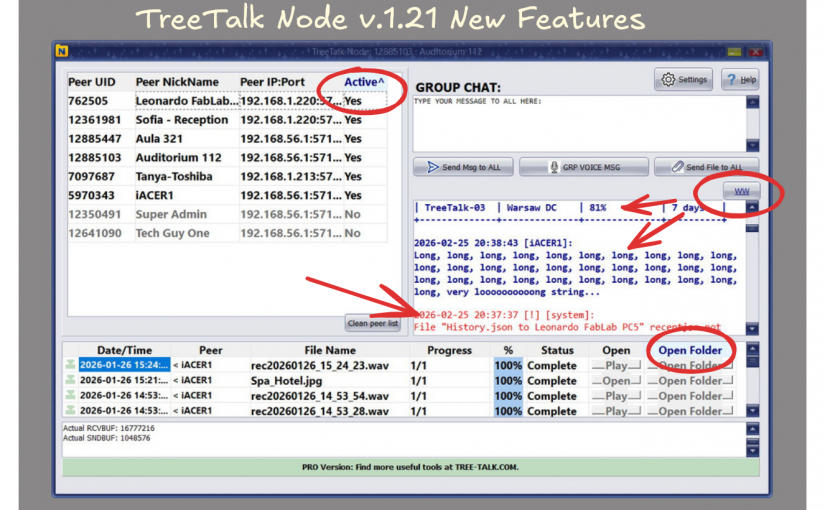
We improved the contrast of the contacts panel and added tooltips to all main interface elements.
The chat placeholder is now removed automatically, and peers are sorted by activity.

Continue reading New Release: TreeTalk Node 1.21 Improves Chat, File Logs, and Peer Management

Why File Sharing Is So Slow – and How to Speed Up Large File Transfers

We’ve normalized something absurd in modern offices. You need to send a CAD file to your colleague three desks away. Both computers are on the same network. The file is 500MB. Logic says this should take seconds. Instead, you’re uploading to Dropbox (waiting), generating a share link (waiting), sending via Slack, while your colleague downloads it back down (more waiting) — routing a file that never needed to leave the building through servers thousands of miles away. Or you’re wrestling with email attachment limits. Or remembering which shared drive has the right permissions. Or hunting for a USB stick that’s inevitably “somewhere” when you need it most. The cloud promised to make work easier. For local file sharing, it made things worse.

Why We Built TreeTalk Node

This frustration hit home in our own workflow. Small development team, mixed Windows environment (some machines running Windows 7 for legacy testing, others on Windows 11), frequent need to move builds, logs, design files, and documentation between systems.
TreeTalk Node: Faster Ways to Send Large Files
Cloud tools felt like using a forklift to move a coffee cup. We didn’t need synchronization, version control, or global access. We needed something simpler: send this file to that person, right now, across our local network. Traditional solutions all had dealbreakers:
  • SMB/network shares require IT configuration most users can’t do themselves, and discovery is terrible (“Is Bob’s machine \DESKTOP-X7K2 or \BOB-PC?”)
  • FTP/file servers need dedicated infrastructure and someone to maintain it
  • P2P sync tools (Syncthing, Resilio) are built for continuous folder synchronization, not quick interactive transfers
  • Legacy LAN messengers have outdated UIs, poor file handling, and security practices from 2005
We wanted something that worked like this: open app, see “Bob – Workstation 3” in the peer list, drag file, send. Done. So we built TreeTalk Node — offline-first file transfer and team chat for Windows PCs in local networks.

How It Actually Works

TreeTalk Node treats your local network the way it should be treated: as a fast, private space you already control.
TreeTalk Node: Faster Ways to Send Large Files
• Automatic peer discovery means the app finds other TreeTalk Node instances across your LAN, Wi-Fi, or VPN within seconds. No IP address configuration, no network mapping, no IT tickets. Just human-readable nicknames: “Alice – Design”, “Bob – Production”, “Print Station 2”.
• Direct PC-to-PC transfers use the full capacity of your local network — typically 100 Mbps to 10 Gbps depending on infrastructure. A 2GB video file that would take 15 minutes via cloud upload/download moves in under 30 seconds on a gigabit LAN.
• Integrated team chat sits alongside the peer list. Quick coordination (“Sending updated specs now”) without switching apps. Group chat for project team, private messages for one-on-one communication.
• File journal logs every sent and received file with timestamp, sender/receiver, and quick access buttons. Opens the file or containing folder instantly. Critical for compliance, auditing, and just remembering “where did that report go?”
• Optional end-to-end encryption for environments where regulatory requirements or shared infrastructure demand it. For small offices where simplicity matters more, unencrypted mode removes complexity (and works faster).
• Zero infrastructure requirements — no dedicated servers, no NAS, no cloud subscriptions. Works on existing network hardware you already have.
• Portable executable means no installation, no admin rights needed, no IT deployment headaches. Copy the .exe to a USB drive, distribute via email, or drop it in a shared folder. Users just double-click and they’re connected.
• Windows 7 SP1 through Windows 11 support matters more than you’d think. Manufacturing plants, logistics hubs, point-of-sale terminals, warehouse management systems — the real world runs on mixed fleets where “just upgrade everything” isn’t an option. Watch how it works in practice: Demo Video

Who This Actually Solves Problems For

TreeTalk Node Private Local Network File Sharing Use Cases

Creative & Development Teams

Workstations exchanging large design assets, source builds, project archives, media exports, and test datasets. Mixed environments (Windows/macOS/Linux), shared WiFi and wired LAN, VPN links between offices or remote teammates, and workflows that can’t wait for cloud sync or upload limits. TreeTalk Node fits the real pipeline: fast peer-to-peer transfers, no cloud dependency, works across VLANs with proper routing (or over VPN as a LAN), and runs on everyday hardware without changing how your team works.

Manufacturing & Industrial Operations

Shop floor computers exchanging production schedules, quality control reports, machine configurations. Often older Windows installations, segmented networks for security, unreliable or non-existent Internet connectivity. TreeTalk Node handles the messy reality: no cloud dependency, works across VLANs with proper routing, runs on decade-old hardware.

Logistics & Transportation

Dispatch centers sending route manifests and delivery updates to driver terminals. Warehouse systems exchanging inventory reports. Field offices with temporary network setups. Fast transfers of time-sensitive documents without relying on external connectivity.
TreeTalk Node: Faster Ways to Send Large Files

Healthcare & Regulated Environments

Medical offices, labs, clinics where HIPAA compliance makes cloud tools risky and expensive. Patient data, imaging files, lab results staying strictly within the local network perimeter. Optional encryption plus audit logs for regulatory documentation.

Education & Training

Computer labs where teachers need to distribute assignments to 30 student machines simultaneously, or collect completed work back. No student accounts to provision, no cloud storage quotas to manage, no Internet bandwidth bottlenecks during class.
TreeTalk Node Private Local Network File Sharing Data Sovereignty

The Data Sovereignty Advantage

Here’s what doesn’t happen with TreeTalk Node:
  • Your files don’t pass through third-party servers
  • No company in another jurisdiction can access your data
  • No metadata harvesting for analytics or advertising
  • No surprise terms-of-service changes affecting your workflow
  • No “we’re shutting down this feature” announcements
For enterprises navigating GDPR, CCPA, industry-specific regulations, or simply internal security policies, this matters. The compliance story is simple: files never leave the network perimeter you control. For investors, this positions TreeTalk Node in the growing market for data sovereignty solutions — businesses actively seeking alternatives to surveillance capitalism business models.
TreeTalk Node - P2P Local-First Chat & File Transfer messenger
TreeTalk Node – P2P Local-First Chat & File Transfer messenger
 

What Happens Next

We’re refining TreeTalk Node based on real-world usage in our beta program. We’re especially interested in feedback from:
  • IT managers deploying in mixed or restricted environments
  • Operations teams in manufacturing, logistics, or field services
  • Compliance officers evaluating data residency solutions
  • Anyone tired of using cloud tools for purely local file transfers
Take our 60-second survey and get early beta access + two months of premium features free: https://tally.so/r/WOOgRJ
The questions we’re most curious about:
  • What makes file sharing convenient for your specific workflow?
  • What slows you down most with current tools?
  • Which features matter most in your environment?

Frequently Asked Questions

1 How to Share Large Files on a Local Network (LAN) or Wi-Fi Network

For transferring large files from hundreds of megabytes to multiple gigabytes (like CAD files, Full HD videos, BlueRay movies or 4K Ultra High Definition content), TreeTalk Node provides the most convenient solution.

Just drag and drop files onto a recipient’s nickname or group chat, or click the “Send File” button. Files transfer directly between computers without touching the internet, making it much faster and more secure than cloud storage — ideal for critical infrastructure and air-gapped networks.

2 How to Transfer Large Files Over the Internet

For transferring large files (hundreds of megabytes to several gigabytes) over the internet, combine TreeTalk Node with a VPN service.

VPN solutions like OpenVPN or SoftEther create secure encrypted connections between devices. TreeTalk Node recognizes this VPN tunnel as a local network and automatically discovers other devices as if they were on the same LAN.

Simply drag and drop files to the recipient or use the “Send File” button. Files are delivered peer-to-peer without cloud services or online storage, ensuring faster speeds and better security.

3 Do I need the Internet or a server to use TreeTalk Node?

No. TreeTalk Node operates entirely within your local network.

Internet access, cloud accounts, and central servers are not required.

Everything—file transfers and messages—remains within your LAN, WiFi, WiFi Halow, or VPN environment, delivering superior privacy, speed, and reliability even in offline or isolated network scenarios.

4 Will TreeTalk Node work on older Windows systems like Windows 7?

Yes. TreeTalk Node is compatible with Windows 7 SP1 through Windows 11.

It’s specifically designed for mixed-age environments where legacy and modern systems work side-by-side—perfect for offices, manufacturing facilities, educational institutions, and home networks with varied hardware configurations.

5 Is TreeTalk Node safe to use for sensitive files?

Yes, completely safe.

TreeTalk Node confines all transfers to your internal network and provides optional end-to-end encryption when extra security is needed.

Your files never leave your network perimeter, no external servers are involved, and you maintain complete control over your data at all times.

6 Do I need to install anything or configure networks?

No installation or configuration necessary.

TreeTalk Node runs as a portable executable:

  • Download it to your devices,
  • Double-click to launch,
  • Watch it automatically find peers on your network.

No driver installation, no firewall modifications, no IT deployment complexity—it simply works out of the box.

7 How fast is file transfer in TreeTalk Node?

Transfers leverage the full bandwidth of your LAN, WiFi, or VPN connection, eliminating the bottlenecks created by cloud services and protocol overhead.

Files move peer-to-peer between computers at native network speeds—consistently outperforming email attachments, messaging apps, SMB shares, and USB drives, particularly when moving large files.


More information: TreeTalk Node Product Page

TreeTalk builds communication infrastructure for environments where privacy, security, and independence matter. TreeTalk Node is our answer to the question: “Why is sending a file across the room harder than sending it around the world?”

Real-life test of TreeTalk terminal and system. Part 1. Hands-on.

Proto_car_day


TreeTalk has begun conducting the real-life tests of the voice terminal. Now the prototypes are being tested in the cars, which is riding around the city and near suburbs in a mode of normal use. Thus, during parking, warm-up and on the move the terminals are subject to temperature extremes from -30 to +20 Celsius (-22 to +68 Fahrenheit). All this time, the built-in audit system records the slightest failures in the network connection, the electronics and embedded firmware.

First trial run confirmed all of the declared advantages of TreeTalk solution. Yes, it still looks like a professional (conventional or trunked) two-way radio. It inherits the pluses of LMR/PMR: broadcasting, constant connection, instant calls, and simplicity. Additionally, TreeTalk adds its own features.

The differences are becoming clear from the very beginning.
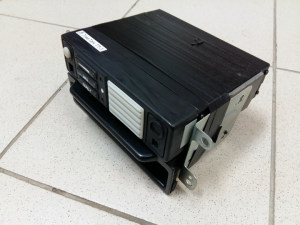
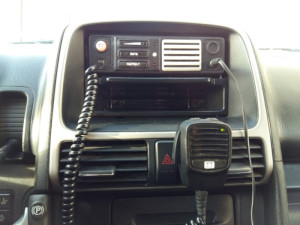
Proto_DINFirst, users of the TreeTalk devices do not need to spend time and effort to complex mounting. The device fits the standard 1-DIN slot perfectly and there is still enough place remaining for the car audio. Professional transceivers are heavy and usually hot. They are energy consuming, thus require dedicated power line from the car battery, made of thick wires. In contrary, TT terminal is light in weight and require minimum power (0.5 Amp). It is omnivorous (10-26 V), so did not require any special DC-DC converter. Its installation is easy, because our specimen has not any wires or connectors on the back panel to connect somewhere.

Strict design looks good in the dashboard of the car. Frontal speaker gives a sound loud enough, even on the medium volume level.
TT_in_car_day_1-1


Second, TreeTalk terminal works without any external antenna. Radio hobbyists and professionals know that antenna, sticking out of the car top, is a weak spot and eternal headache. It is always going to be lost or broken, and the cable tends to be tangled and torn. So no antenna – no problem.

Third, the terminal is very friendly. All manipulations with the buttons are accompanied by signals or voice announcements (in English). If you miss the last message, led indicates that it is recorded — you can just push ‘REPEAT’ button to listen to it. (If you did not understand or resolve some important information, you can make that again).

(To be continued…)